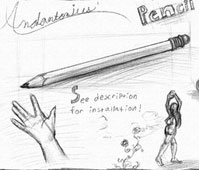
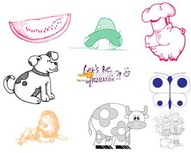
Andantonius’ Pencil Brush

Screenshot for Post #903
Author: Andantonius License: It's FREE!
Number in set: 1 Download Hits: 13869
Tagged:
Filed under: Brushes, Objects

What if you had the speed and control of digital sketching, combined with the beauty and appeal of pencil sketching?

Guess what… you do!

With this pencil brush and sketch paper action, you can quickly and easily create natural-looking pencil sketches, without the pencil! The brush takes advantage of both pen pressure and tilt to create a very natural feel and look.

All you need to get started is Photoshop! Though, for best results, the use of a pressure and tilt sensitive graphics tablet is advised.

- Installation -

To use the pencil brush, just follow these simple steps:

1. Download Andantonius-Pencil-Brush.zip by pressing, “Download” to the left of this deviation.

2. Extract Andantonius-Pencil-Brush.zip to /Adobe/Adobe Photoshop (Path may vary depending on operating system, and, “Adobe Photoshop” will change depending on what version you have)

3. Start (Or restart if it’s already open) Photoshop.

4. To select the pencil brush, simply click on the arrow on the right-hand side of the brush selection menu. Then, from the drop-down menu, select, “Pencil”.

5. You can now use the pencil brush; but for best results you can also use the Prepare Sketch action. To load the action, simply select the, “Actions” tab at the right-hand side of Photoshop, above the layers palette.

6. Click the arrow on the right-hand side of the actions tab. Then, from the drop-down menu, select, “Load Actions…”.

7. Then navigate to /Adobe/Adobe Photoshop/Presets/Actions and double-click on, “PrepareSketch.atn”.

8. Then a folder labeled, “Andantonius’” should appear in your actions tab. Open it up, select the Prepare Sketch action, and press the play button at the bottom of the actions tab.

9. Let your computer work for a few moments; if you’ve done everything correctly, three layers should appear: Base, Sketch, and Texture. The action should have automatically selected the pencil brush, selected the Sketch layer, and selected an appropriate color for pencil sketching. Now just set your brush mode to, “Multiply”.

10. Sketch!

Related Posts

One Comment

  1. A great set, I’m using it now

Leave a Reply